 |
| Clamp in place and tightened down. |
Wednesday, November 15, 2017
Mill: Screwless Vise Clamps
One of the downside to a screwless vise is having to make clamps to hold it to the table. However, if you have a table clamping kit (which everyone should have), then you can use the smallest clamp with a low profile bolt to clamp the vise in place. This saves some work, but it also distributes the weight well on the table, which keeps any dents or divots from forming.

Mill: Table Stops
The X2 large table has a slot cut in the front for table stops. To make them I took M6 coupling nuts and milled 5mm on the end down to 6mm wide, then I cut 11mm of the couple nut. This gave me an easy little T-nut to use. I then used M6 Allen bolts with a spacer to mount them on the table.
The table's base has two M4 holes to mount the stop. I milled one from 2.5mm aluminum plate and mounted it up.
I now move the table where I want it, move the stop until it touches, and then I can repeat to about 0.001".
 |
| M6 coupling nut, T-nut, and M6 Allen bolt with spacer. |
The table's base has two M4 holes to mount the stop. I milled one from 2.5mm aluminum plate and mounted it up.
I now move the table where I want it, move the stop until it touches, and then I can repeat to about 0.001".
 |
| Stop mounted to table base and movable stop mounted on table. |
Friday, November 10, 2017
Mill: Head Alignment
My first post about my mill regarded aligning the head to the column. Back then I remove the column from the base so the table wouldn't interfere.
Recently I had to realign the head again, and used a much easier technique to do it. First I remove the support spring from the head so I could extend it above the top of the column. Then I chucked a straight and polish rod using my ER25 chuck. You can use pretty much anything to hold it, but it helps if it's low profile. With the rod extended a little over 4" from the chuck face, and the head could move a total of about 6" from the rod touching the table to the head reaching the top of the column.
I clamped my vise vertically to the table and used it to hold a DTI which indicated the rod. I then used Rolle's Dad's Method (RDM) to check the alignment of the rod. In my case the head was 0.0015" over 4" out of alignment.
I then moved the head up past the top of the column until the top two bolts holding the head together were exposed, and loosened them both. I then tightly tapped my motor mount with a rubber mallet to adjust the head. Weirdly, I found tapping it on the right side would rotate the head clockwise. After each adjustment with the hammer I'd check the alignment using RDM. From experience I knew tightening the bolts would rotate the head counter-clockwise about 0.0015" as measured with this setup, so I accounted for that.
Once the alignment was where I wanted it, I again raised the head above the column and in small increments I tightened the two bolts down. You want to get them nice and tight. I think checked the alignment again using RDM. Finally, I carefully lifted up the head until the lower head were just exposed and checked to make sure they were still tight as well, and then checked my alignment once more.
Ultimately, this way was much faster and easier than dismounting the column.
Recently I had to realign the head again, and used a much easier technique to do it. First I remove the support spring from the head so I could extend it above the top of the column. Then I chucked a straight and polish rod using my ER25 chuck. You can use pretty much anything to hold it, but it helps if it's low profile. With the rod extended a little over 4" from the chuck face, and the head could move a total of about 6" from the rod touching the table to the head reaching the top of the column.
I clamped my vise vertically to the table and used it to hold a DTI which indicated the rod. I then used Rolle's Dad's Method (RDM) to check the alignment of the rod. In my case the head was 0.0015" over 4" out of alignment.
 |
| In the middle of checking the head alignment. |
I then moved the head up past the top of the column until the top two bolts holding the head together were exposed, and loosened them both. I then tightly tapped my motor mount with a rubber mallet to adjust the head. Weirdly, I found tapping it on the right side would rotate the head clockwise. After each adjustment with the hammer I'd check the alignment using RDM. From experience I knew tightening the bolts would rotate the head counter-clockwise about 0.0015" as measured with this setup, so I accounted for that.
Once the alignment was where I wanted it, I again raised the head above the column and in small increments I tightened the two bolts down. You want to get them nice and tight. I think checked the alignment again using RDM. Finally, I carefully lifted up the head until the lower head were just exposed and checked to make sure they were still tight as well, and then checked my alignment once more.
Ultimately, this way was much faster and easier than dismounting the column.
Wednesday, November 8, 2017
Mill: Bearing Seal
A surprising amount of shavings make it up to the bottom of the mill head. When I was using open bearings, even with a shield in place they became contaminated. Even though I'm using sealed bearings now, I wanted additional protection. So like on the lathe, I made a new bearing cover for the mill which accepted a standard size oil seal.
For a MT3 spindle you want a 40x55x5 oil seal.Since the bearings are sealed, I didn't need the oil seal's inner lip, so I cut it off to reduce friction. The seal could actually have been pressed into the stock plastic bearing cover, but I figured aluminum would be more durable and prevent potential problems in the future.
If you want to run open bearings on the mill you'd pretty much need to do something like this to retain the grease and exclude contaminants. If you have a R8 spindle and upgrade the bearings, this is almost a mandatory upgrade since I've only seen open 7007 AC bearings.
For a MT3 spindle you want a 40x55x5 oil seal.Since the bearings are sealed, I didn't need the oil seal's inner lip, so I cut it off to reduce friction. The seal could actually have been pressed into the stock plastic bearing cover, but I figured aluminum would be more durable and prevent potential problems in the future.
If you want to run open bearings on the mill you'd pretty much need to do something like this to retain the grease and exclude contaminants. If you have a R8 spindle and upgrade the bearings, this is almost a mandatory upgrade since I've only seen open 7007 AC bearings.
 |
| Bearing cover with oil seal installed on the mill. |
Monday, October 16, 2017
Shims
For shims I use feeler gauges since they're cheap, precise, come in an assortment of sizes, and have the size written on the shim. I usually use this set from Amazon with starts at 0.0015" (0.038mm) :
https://www.amazon.com/dp/B0009OMY9C
If I need larger or thinner shims I'll go with this assortment pack which goes down to 0.001":
https://www.amazon.com/dp/B00065UXD8
Aluminum foil also makes good shim stock with standard aluminum foil being 0.0006" while heavy duty aluminum foil is 0.0008".
I always measure my shims before using them since I've found they're sometimes mislabeled.
There isn't much reason to be worried about galvanic corrosion between aluminum shims and cast iron, and the potential between them is extremely low. Aluminum foil is approximately 0.90V while cast iron is approximately 0.85V. Even harsh environments allow a difference up to 0.15V, with a temperature controlled environment allowing up to 0.5V.
However, I'd recommend against using stainless steel shims, since they have a significantly greater potential of corroding steel or cast iron.
https://www.engineersedge.com/galvanic_capatability.htm
https://www.amazon.com/dp/B0009OMY9C
If I need larger or thinner shims I'll go with this assortment pack which goes down to 0.001":
https://www.amazon.com/dp/B00065UXD8
Aluminum foil also makes good shim stock with standard aluminum foil being 0.0006" while heavy duty aluminum foil is 0.0008".
I always measure my shims before using them since I've found they're sometimes mislabeled.
There isn't much reason to be worried about galvanic corrosion between aluminum shims and cast iron, and the potential between them is extremely low. Aluminum foil is approximately 0.90V while cast iron is approximately 0.85V. Even harsh environments allow a difference up to 0.15V, with a temperature controlled environment allowing up to 0.5V.
However, I'd recommend against using stainless steel shims, since they have a significantly greater potential of corroding steel or cast iron.
https://www.engineersedge.com/galvanic_capatability.htm
Tuesday, September 19, 2017
Mill: TouchDRO
First off, all credit to Yuriy Krushelnytskiy of http://www.yuriystoys.com/.
One of the biggest problems with the X2 is the amount of backlash in all the axis. Instead of trying to lessen the backlash I installed TouchDRO on all three axis. Since they read the table's and head's position directly, you can pretty much ignore the backlash present.
While poking around the internet for information on the X2 mill, I stumbled on Yuriy's blog. What really intrigued me was his DRO application for the Android: http://www.yuriystoys.com/search/label/DIY%20DRO%20Project
He was using iGaging digital scales, which most X2 owners end up using when installing DROs, connected to an Arduino, which interfaced with an Android via Bluetooth. The DRO app he wrote took the input from the digital scales and displayed it in a nice interface. Just that alone had my attention since the included iGaging remote LCD displays were a little hard to see. However, since all the work is being done in software, it'll be easy to add new features to the DRO in the future. Additionally, since it's open source, you can always add a must have feature yourself. Now that Androids have gotten cheap enough and powerful enough, it makes a lot of sense to do in software what traditional DROs did in hardware. Doing it in software is just much cheaper and much more flexible.
If you have the tilting column, the X scale needs to be offset not to lose travel from the read head hitting the column pivot, the aluminum L channel being used as a chip shield makes a pretty convenient offset mount. With the solid column mill the X scale can be mounted centered.
I used a 2" aluminum angle completely cover the scale, cutting down one side so it fits on top of the chip shield. Without it, tiny chips can get inside the read head and cause reading jumps.
 |
| Offset X scale for column pivot clearance. |
 |
| Centered X scale on solid column mill. |
 |
| Chip cover in place over the scale. |
The Y scale in mounted to the base on the left of the mill. The base's sides have a slight angle to them, but that doesn't matter when mounting the scale so long as it remains parallel to Y axis. I've found the table itself shields the scale sufficiently.
 |
| Y scale mounted. |
Once I installed the gas spring and removed the old torsion spring, installing the Z axis DRO was super easy. I removed the ruler on the left side of the column a while ago, since it was so course it was pretty much useless. The 12" iGaging digital scale was the perfect length to screw right into the holes left by the ruler. I then quickly fabricated a bracket to connect the scale's reader to the threaded hole on the head which used to hold the ruler's indicator. Perfect.
 |
| Z scale mounted using existing threaded holes. |
At first I had tried using a prepackaged optical sensor for Arduino (available on Amazon), but switched to a Hall effect magnetic sensor since they're easier to use and for this application tend to be just as accurate. I was able to buy them already mounted on a psb with a LS393 comparator (http://www.amazon.com/dp/B009M86TFG/). The comparator allows you to have an essentially digital signal with it either on or off.
I
already have a belt drive installed, so I drilled two holes at opposite
ends of the top pulley and JB Welded in small neodymium magnets. The
top of the Hall effect sensor psb was covered with epoxy putty to
protect it from swarf. Then it was attached to the pulley cover using
foam tape and a mounting screw. The sensor itself hangs over the back of
the cover and directly over the path of the magnets.
For the Arduino I bought the Leonardo model which comes without headers,
since I like soldered connections. However, I learned the hard way the
app does NOT like the Leonardo. The app would connect, and then
immediately lose connection. Once I switched from the Leonardo to the
Uno R3 everything started working beautifully. The Uno R3 comes with
headers, so I needed to cut them off and de-solder the pins so I could
solder the leads in place. | |
| Magnets on the pulley. The black sections were for the optical sensor. |
 |
| The Hall effect sensor covered with epoxy putty and mounted on the pulley cover. |
 |
| Uno R3 with the headers and pins removed. |
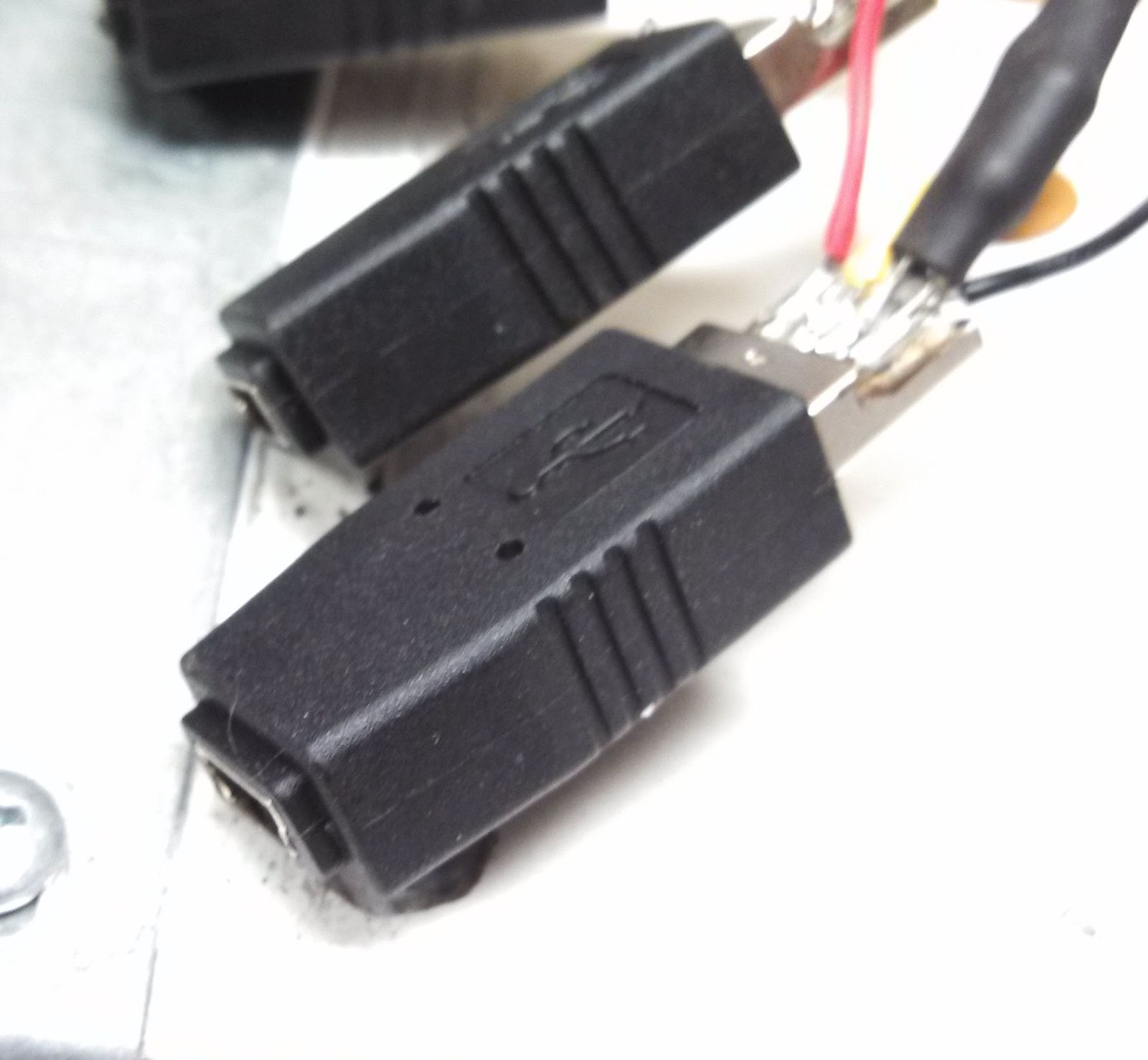 |
| Mini B USB adapters. |

Adapters wired to the Arduino.
I used a 3.5mm stereo headphone jack for the tachometer interface. If I get around to repackaging the Arduino I'll change it to another interface since the 3.5mm jack will short power to ground as the connector is inserted or removed, so you need to power down the Arduino before doing so. It's not a show stopper, but it is annoying. I've hot glued the connector so it can't accidentally pull out while in use. A 10K pull down resistor needed to be added to the tach sensor input.
I bought a small project box from Radio Shack, and aside from the very annoying issue with the Leonardo, the hardest part was installing everything inside the box. I machined slots in for the USB adapters to stick out through. I wedged them in there and glued them in place with epoxy. I also cut a hole for the USB cable which will provide power. To mount the Arduino I secured a thin piece of wood in the bottom of the project box, which the Arduino screwed to.
 |
| All packaged up. |
I then used Sugru to make the USB connectors look pretty, enclose the USB power cable, and provide it with strain relief. If you haven't used it before, Sugru is a really useful thing to have in your tool box. It comes in little packets and it's silicone rubber which sticks to most things and is moldable for 30 minutes after opening, and cures in 24-48 hours.
 |
| Sugru. |
 |
| The project box with Sugru added. |
After that the USB cable was hot glued into the USB jack on the Arduino, the unit was tested again, and then the top was screwed in place. Magnets were glued to the box and the box mounted on the back of the column. It draws its power form a Motorola cell phone charge.
 | |||||||
| All packed up and ready to go. |
There were issues with TouchDRO reading 20-40 times too low on the tachometer. After some time spent on the TouchDRO Google+ development forum I changed the Arduino sketch to one being developed by Ryszhard (http://www.rysium.com/rysium.docs/) and the tach immediately started working. I checked its readings against my laser tachometer and they match to within 20 RPM.
For my readout I'm using a 10" non-widescreen tablet, as I find the non-widescreen format works better for a DRO. This has been one of the best upgrades I could have possibly done and made the mill so much easier and nicer to use. I cannot recommend it enough, and I would never go back to not having one.
Mill: X Axis DRO Cover
Please read the complete article:
http://benchtopmachineshop.blogspot.com/2017/04/mill-touchdro.html
I'm using the iGaging linear scales for my DRO, and noticed my X axis would sometimes jump wildly before going back to normal. It turns out I'd gotten some tiny swarf inside the scale's body. After carefully cleaning it out, I used a 2" aluminum angle completely cover the scale. I needed to cut one side shorter so it would fit on top of the existing cover.
http://benchtopmachineshop.blogspot.com/2017/04/mill-touchdro.html
I'm using the iGaging linear scales for my DRO, and noticed my X axis would sometimes jump wildly before going back to normal. It turns out I'd gotten some tiny swarf inside the scale's body. After carefully cleaning it out, I used a 2" aluminum angle completely cover the scale. I needed to cut one side shorter so it would fit on top of the existing cover.
|
| DRO cover in place on X axis. |
Subscribe to:
Posts (Atom)